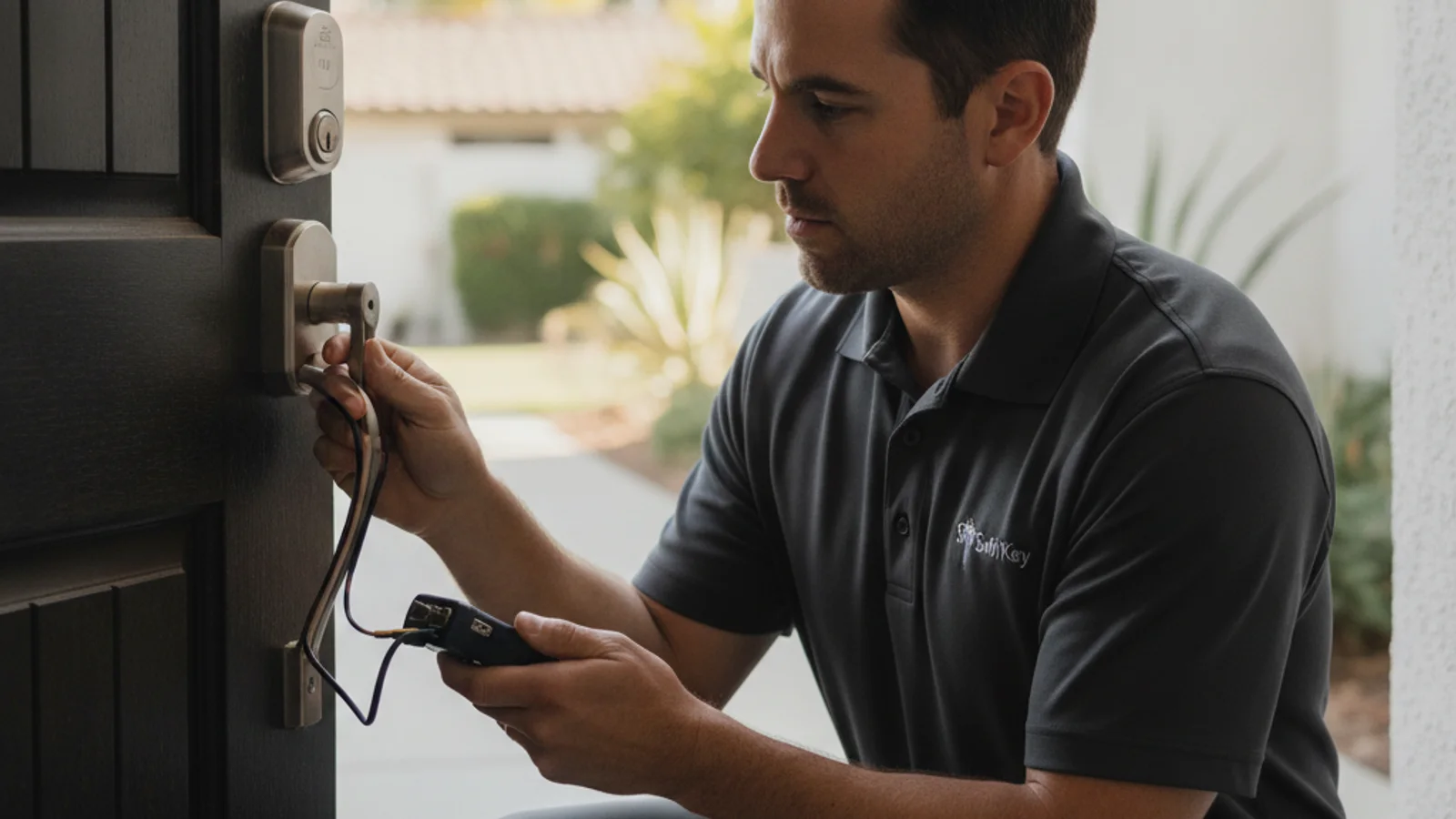
Most smart locks only support 2.4GHz wifi. If your router is broadcasting a single network name for both bands, the lock is almost certainly trying to connect to 5GHz and failing silently. Separate your bands into two SSIDs in your router settings, then connect the lock specifically to the 2.4GHz network. That one change fixes the majority of smart lock wifi connection failures.
If that’s not the issue, you’re dealing with one of a handful of other common causes: weak signal at the door, a router setting blocking the pairing, a lock that uses a hub instead of direct wifi, or a battery level too low to sustain a connection attempt. Here’s how to work through all of them.
The 2.4GHz problem (and band steering)
Every current wifi smart lock, and every lock made in the last several years, connects to 2.4GHz wifi only. The 5GHz band has faster speeds but shorter range. Smart lock manufacturers use 2.4GHz because it passes through walls better and maintains signal at longer distances. The lock’s radio hardware simply can’t tune to 5GHz.
Modern routers, especially mesh systems like Eero, Google Nest Wifi, and Orbi, use a feature called band steering. Band steering broadcasts a single network name (SSID) for both 2.4GHz and 5GHz, then automatically assigns each device to whichever band it thinks is best. The problem: band steering often pushes devices to 5GHz when the signal looks strong during setup, even though the lock can’t use that band. The lock tries to connect, gets rejected, and you see a generic setup failure.
The fix is to split your bands into two separate SSIDs. Log into your router admin interface (usually at 192.168.1.1 or 192.168.0.1 in a browser), find the wireless settings, and create a dedicated 2.4GHz network with a name like “HomeNetwork_2.4G.” Then run the lock’s setup again and connect to that specific network.
One more thing while you’re in router settings: make sure the 2.4GHz network uses WPA2 security. WPA3-only mode causes pairing failures on many smart lock models because their onboard chips don’t support the newer protocol. Mixed WPA2/WPA3 mode is fine. WPA3-only is the problem.
Signal strength at the door
Even when the band is right, the front door is usually the worst-covered spot in a house for wifi. You’re dealing with an exterior wall, and depending on your home’s construction, that wall might be actively hostile to wifi signals.
Stucco walls with metal lath reinforcement, which are common in older San Diego construction throughout neighborhoods like North Park, Hillcrest, and Mission Hills, block wifi noticeably more than standard drywall. The metal mesh acts like a partial Faraday cage. Homes built before the 1980s in these areas frequently have signal that looks fine two rooms away but drops to borderline at the front door.
Test the actual signal where the lock sits. Stand at your front door with it closed and check your phone’s wifi bars. If you’re seeing two bars or fewer, that’s your problem. The lock will connect intermittently at best, and will drop offline repeatedly after initial setup.
The solution is to get a wifi access point closer to the door. A mesh node or range extender placed within 15 to 20 feet of the lock, ideally on the same wall or the wall adjacent to the door, usually resolves it. If you already have a mesh system, check which node the door is connecting to. It should be the nearest one, not a node two rooms away.
Hubs, bridges, and architecture: not all smart locks use wifi directly
Before spending time troubleshooting wifi, confirm that your lock actually uses direct wifi. Many popular smart locks don’t connect to wifi at all. They use a separate radio protocol and require a dedicated bridge or hub.
Here’s how the main architectures break down:
| Lock type | How it connects | What you need |
|---|---|---|
| Direct wifi (Schlage Encode, Kwikset Halo, Yale Assure Wifi) | Connects directly to your router | Just your 2.4GHz network |
| Bluetooth + hub (August Smart Lock) | Bluetooth to a bridge plugged into the wall | August Connect bridge plugged in near the door |
| Z-Wave (many Yale and Kwikset models) | Z-Wave radio, not wifi | A Z-Wave hub (SmartThings, Hubitat, Wink, etc.) |
| Zigbee | Zigbee radio, not wifi | A Zigbee hub or coordinator |
| Matter over Thread | Thread radio | A Matter border router (newer Nest, HomePod mini, Amazon Echo 4th gen) |
If you have an August Smart Lock Pro, for example, it connects to your phone via Bluetooth. Remote access and wifi require the August Connect bridge, which is a separate piece of hardware that plugs into a nearby outlet. The lock itself never touches your wifi network. Troubleshooting wifi pairing on that lock is the wrong path; you need the bridge.
Check your lock’s packaging or the manufacturer’s app to confirm which connectivity architecture it uses before going further.
Router settings that break pairing
Beyond WPA3-only mode and band steering, a few other router configurations can block smart lock pairing:
MAC address filtering. Some routers allow only devices with pre-approved MAC addresses to connect. Smart locks don’t come with their MAC address printed anywhere accessible. If you’ve turned on MAC filtering as a security measure, you’ll need to disable it temporarily during pairing, then add the lock’s MAC address to the allowed list afterward. You can find the MAC address in the lock’s app after a successful connection.
AP isolation. Some routers, particularly those set up in guest-network mode, enable AP isolation which prevents devices on the network from talking to each other. If you’re trying to pair the lock through a guest network or a network with this setting enabled, pairing will fail. Use your primary network.
Captive portal / hotspot mode. Any network that requires a browser login before full access, common in apartment buildings with shared wifi, won’t work with a smart lock. The lock has no browser. It needs a standard password-protected home network.
Hidden SSIDs. A small number of smart lock models have trouble connecting to networks with hidden (non-broadcasting) SSIDs. If yours is hidden, try temporarily broadcasting it during setup.
Battery level and connectivity
There’s a connection between battery level and wifi behavior that most people don’t expect. Establishing a wifi connection is one of the most power-intensive things a smart lock does. A lock with batteries that are borderline low, say 20% or under, may not have enough current to complete the handshake reliably. It’ll start the connection process, drain the spike of current it needs, and fail partway through.
The fix: put in a fresh set of alkaline batteries before attempting wifi setup or troubleshooting a persistent offline issue. Don’t use rechargeable NiMH batteries for this. They deliver 1.2V instead of the 1.5V alkalines provide, which is enough of a difference to cause problems with the wifi radio on some lock models.
Weak wifi signal also drains batteries faster over time. A lock that’s struggling to maintain a marginal signal wakes its radio more often, burns more power per connection, and shortens battery life noticeably. If you’re replacing batteries every two to three months instead of every nine to twelve, signal strength is worth checking alongside the usual culprit of strike plate misalignment. Our post on smart lock troubleshooting covers the battery-drain causes in detail.
The offline reality check: your lock still works without wifi
This is worth knowing before you spend hours troubleshooting connectivity: a smart lock that can’t connect to wifi is still a working lock.
Every wifi smart lock ships with a physical keypad. You can enter a code and the bolt extends. The lock doesn’t need wifi to do that. What wifi enables is remote access through the app, activity notifications, and voice assistant integration. It does not control whether the lock works as a lock.
If your priority is access control, codes work offline. You can set them through the keypad directly (without the app) on most lock models. If you’re locked out right now and the wifi isn’t cooperating, the physical key override, which every smart lock includes, will get you in while you sort out the connectivity.
This also means connectivity issues are worth fixing thoughtfully rather than frantically. The lock isn’t broken. You’re just missing the remote access layer.
If the underlying lock hardware needs attention, the smart lock installation page connects you with an independent locksmith who can inspect door prep and quote setup. Router configuration still belongs to you or your internet provider.
Connectivity diagnosis by symptom
| Symptom | Most likely cause | First fix |
|---|---|---|
| Fails during initial setup | 2.4GHz / band-steering issue | Split bands, connect to 2.4GHz SSID |
| Connects once, drops offline repeatedly | Weak signal at the door | Add mesh node within 15 feet |
| Fails setup on first attempt, works on retry | Marginal signal or low battery | Fresh batteries + check signal strength |
| App can’t discover lock at all | Wrong architecture (needs hub/bridge) | Check whether lock needs a separate bridge |
| Connects to wifi but app can’t reach it | Router AP isolation or guest network | Switch to primary home network |
| Setup fails after router upgrade | WPA3-only or new MAC filtering | Set WPA2/WPA3 mixed, disable MAC filtering |
| Works on phone hotspot, not home network | Captive portal or hidden SSID | Check for portal login requirement |
Frequently asked questions
Why won’t my smart lock connect to Wi-Fi?
The most common reason is band mismatch. Smart locks use 2.4GHz only, but most modern routers broadcast both 2.4GHz and 5GHz under the same network name. The lock tries to connect to 5GHz and fails. Fix this by splitting your router’s bands into separate SSIDs and connecting the lock specifically to the 2.4GHz network. If the band is right, check signal strength at the door and make sure your router isn’t running WPA3-only security.
Does a smart lock work without Wi-Fi?
Yes. The keypad works without any wifi connection. You can enter codes, lock, and unlock the bolt regardless of whether the lock is online. What wifi enables is remote access through the app and activity notifications. If you’re dealing with connection issues, you’re not locked out; you’re just without remote control until the issue is resolved. Every smart lock also includes a physical key cylinder as a backup.
Why does my smart lock keep going offline?
A lock that connects but keeps dropping is almost always a signal-strength problem. The front door is typically the worst-covered spot in a house because it’s at the edge of the wifi range and often behind an exterior wall. Stucco homes, which are common throughout San Diego, are harder on wifi signal than standard drywall construction. Add a mesh node or range extender within 15 to 20 feet of the lock to stabilize the connection. Weak signal also drains batteries faster, so persistent offline issues and fast battery drain often come together.
My lock needs a hub. What does that mean?
Some smart locks, including Z-Wave and Zigbee models and older Bluetooth locks like the standard August Smart Lock, don’t connect directly to your home wifi. They use a short-range radio protocol (Z-Wave, Zigbee, or Bluetooth) to talk to a separate hub or bridge device, which then connects to your network. If your lock uses this architecture, wifi troubleshooting on the lock itself won’t help. You need the hub set up and connected. Check your lock’s documentation or app to confirm what protocol it uses.
Does weak wifi signal drain smart lock batteries faster?
Yes, noticeably. A lock struggling to maintain a marginal wifi signal wakes its radio more frequently and draws more current per connection attempt. Locks with solid signal typically run 9 to 12 months on fresh alkaline batteries. Locks with borderline signal can drain batteries in 3 to 4 months. If you’re replacing batteries more often than expected and the lock keeps going offline, improving signal at the door often fixes both problems at once.
Can a locksmith help with smart lock wifi issues?
For hardware installation and door-prep issues, yes. If your lock can’t maintain a connection because it’s misaligned, binding on the strike plate, or draining batteries too fast due to a mechanical issue, those are things a locksmith can quote on site. For router configuration and network settings, that’s more in the territory of your internet provider or a home network technician. If you want a locksmith to inspect alignment and quote an install, call (858) 400-4082. Swift Key is a referral service. You contract with the locksmith.
Still stuck after working through the list? Our smart lock troubleshooting guide covers the full range of hardware and software issues. If you’re choosing between lock models, best smart locks for 2026 breaks down which ones are worth the investment. And if your battery died mid-issue and left you stuck outside, smart lock battery died and locked out covers what to do right now.
For smart lock help in San Diego, call (858) 400-4082.